
I don’t think outlook should be making PDFs.. You can disable the add-ins with group policy
Download Office ADMX files
2013: https://www.microsoft.com/en-au/download/details.aspx?id=35554
2016: https://www.microsoft.com/en-au/download/details.aspx?id=49030
Copy the files under ADMX to your policy central store
Now create a group policy, browse to
User Configuration > Administrative Template > Microsoft Outlook 2016 > Miscellaneous > List Of Manage add-ins
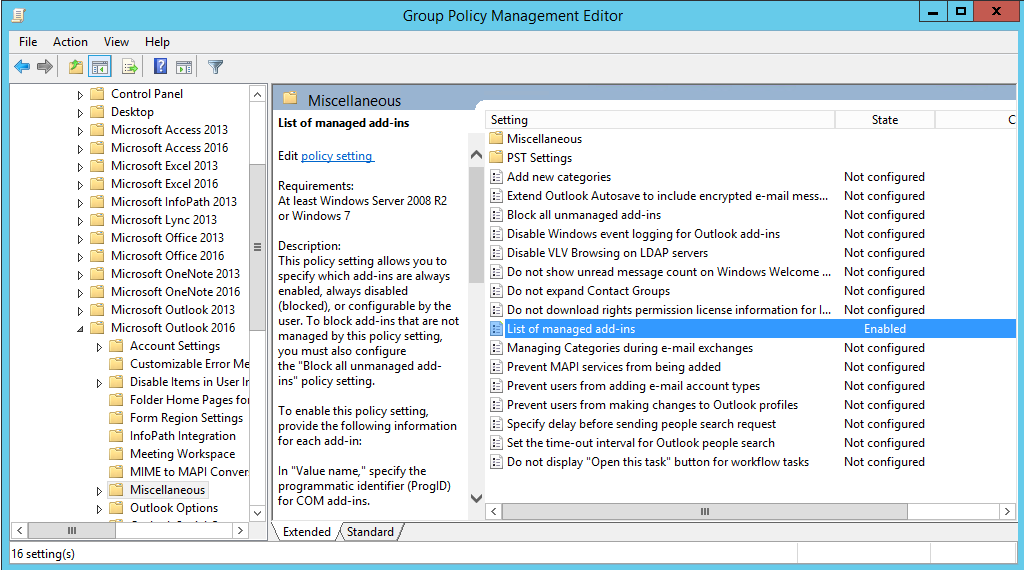
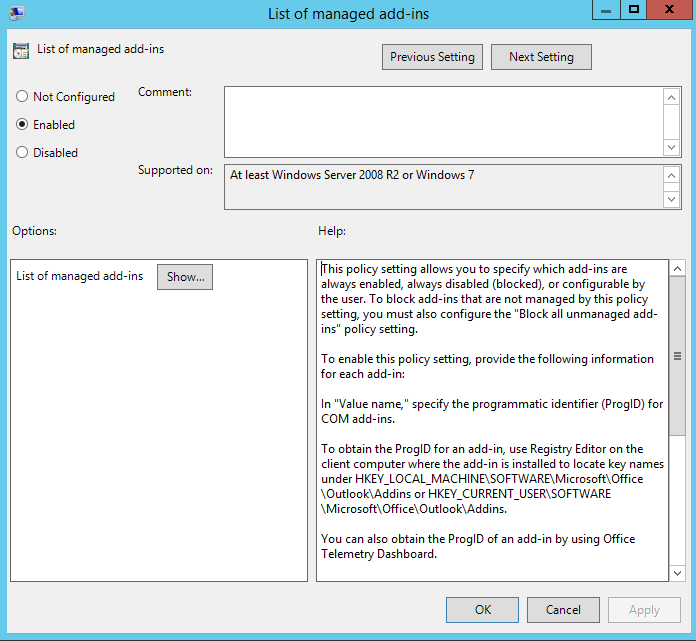
Edit the policy setting, click show
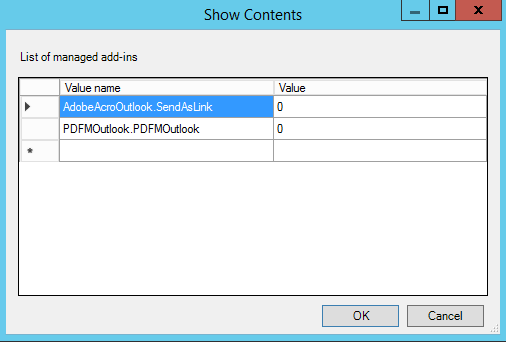
Then specify the add-ins you want to disable with a value 0
To block other add-ins you need to find the progID for the addin, they can be found in the registry for each app in the suite:
HKEY_LOCAL_MACHINE\SOFTWARE\Microsoft\Office\Outlook\Addins or HKEY_CURRENT_USER\SOFTWARE\Microsoft\Office\Outlook\Addins
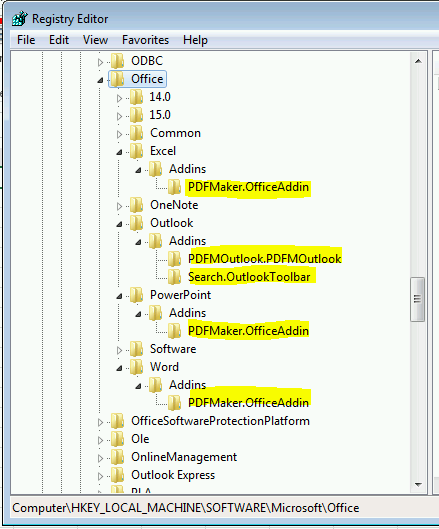
To block Adobe out of Office altogether:
Admin Templates – For each List of manage Add-ins
Microsoft Excel 2016:
PDFMaker.OfficeAddin 0
Microsoft Excel 2013:
PDFMaker.OfficeAddin 0
Microsoft Word 2016:
PDFMaker.OfficeAddin 0
Microsoft Word 2013:
PDFMaker.OfficeAddin 0
Microsoft Powerpoint 2016:
PDFMaker.OfficeAddin 0
Microsoft Powerpoint 2013:
PDFMaker.OfficeAddin 0
Microsoft Outlook 2016:
AdobeAcroOutlook.SendAsLink 0
PDFMOutlook.PDFMOutlook 0
Microsoft Outlook 2013:
AdobeAcroOutlook.SendAsLink 0
PDFMOutlook.PDFMOutlook 0
Another option (less harsh) is to change the load behaviour to 2 via registry after install or possibly a preference. This makes the plugin not loaded by default but allows the user to load it manually.
Example Reg https://1drv.ms/t/s!Apq2Xflj18I1wGkFeyX_T3lbtM5G


Leave a Reply